
Linear Integration

At A Glance
What Linear does in Woes
Linear is a workflow integration. It is not a support channel, and Woes does
not use Linear issues as documentation for the AI agent.
Where it appears in Woes
- Workspace Settings -> Integrations — connect, reconnect, disconnect, and confirm the Linear connection.
- Issues — create a Linear issue from a Woes support issue, choose a team, open the linked Linear issue, or unlink it.
- Automations — add the Create Linear issue action to issue workflows.
- Customer issue views — show safe linked Linear issue details when a Woes issue already has a Linear link.
Connect Linear
- In Woes, open Workspace Settings -> Integrations.
- Select Linear.
- Click Connect.
- Approve the requested Linear permissions.
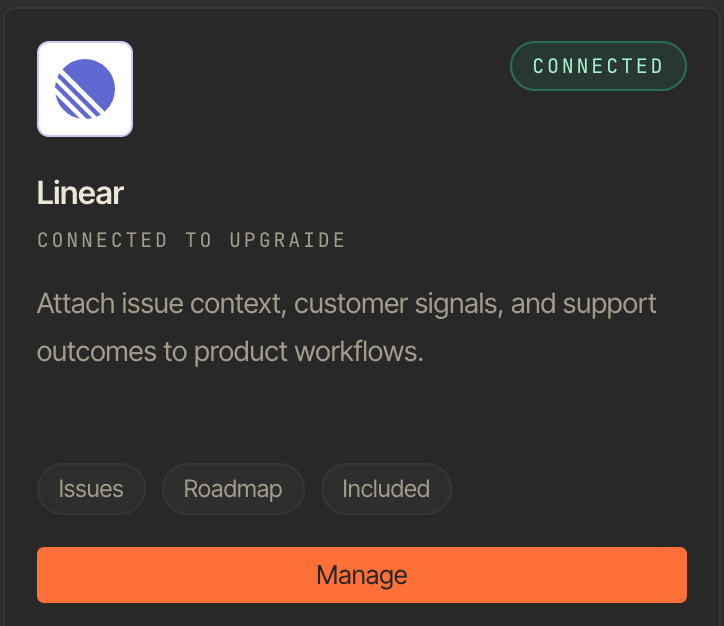
- Return to Woes and confirm the Linear card shows Connected.
Status sync
Woes maps support issue lifecycle states to the closest matching Linear workflow state available on the selected team.
If a Linear team uses custom workflow states, Woes chooses the closest available
state type. If there is no reasonable match, the link remains visible and the
issue can still be managed manually in Linear.
Automations
The Create Linear issue automation action is available for issue workflows. It uses the same Linear connection as manual issue creation and avoids creating duplicate Linear issues for the same Woes issue. Good automation patterns:- Create a Linear issue for new high-priority bug reports.
- Create a Linear issue when a support issue receives a
docs-gaptag. - Create a Linear issue for repeated customer requests after triage.
Permissions and privacy
Woes asks Linear for the permissions needed to read basic workspace information, create issues, and keep linked issue status up to date. Woes only shows customer-facing Linear details that are useful for tracking work, such as the linked issue key, status, and URL. Private Linear connection details are not shown in customer issue views.Current boundaries
- Woes creates Linear issues from Woes support issues; it does not create Woes support issues from unrelated Linear issues.
- Woes syncs lifecycle status. Linear comments are not posted as customer-visible replies; when available, linked Linear comment activity may appear as operator-only internal notes in Woes.
- Woes does not mirror Linear assignees, labels, projects, estimates, or cycles yet.
- Woes does not import Linear issues into the Context Library.
- Automation rules create or keep one Linear link per Woes issue. They do not yet choose a specific Linear project, label, cycle, or assignee per rule.