> ## Documentation Index
> Fetch the complete documentation index at: https://docs.woes.dev/llms.txt
> Use this file to discover all available pages before exploring further.
# Slack Integration
> Connect Slack to Woes so approved Slack conversations, DMs, mentions, and emoji-created tickets can flow into the shared support inbox.
# Slack Integration
 Slack connects customer, community, and internal Slack conversations to the same
Woes support inbox used by live chat, email, and Discord. Once Slack is
connected and intake is enabled, Woes can create conversations from approved
Slack surfaces, route them to the Slack answering agent, and post AI or
operator replies back to the original Slack thread.
Slack connects customer, community, and internal Slack conversations to the same
Woes support inbox used by live chat, email, and Discord. Once Slack is
connected and intake is enabled, Woes can create conversations from approved
Slack surfaces, route them to the Slack answering agent, and post AI or
operator replies back to the original Slack thread.
 ## What the Slack integration does
Use Slack when support requests already happen in shared channels, customer
channels, community spaces, or direct messages to your Slack app.
| Capability | What customers get |
| --------------------------- | ---------------------------------------------------------------------------------------------------------------------------- |
| Shared inbox intake | Approved Slack activity becomes normal Woes conversations alongside live chat, email, and Discord. |
| Controlled channel rules | Workspace admins choose exactly which Slack channels can create conversations. |
| App mention support | A mention of the Woes Slack app can open or continue a support conversation when that channel is enabled. |
| Direct message support | Direct messages to the Slack app can become support conversations when DM intake is enabled. |
| Every-message mode | Selected high-signal channels can route every normal message into Woes. |
| Emoji ticket mode | Selected channels can turn an existing Slack message into a Woes conversation when someone reacts with a ticket-style emoji. |
| AI answers in-thread | The assigned Slack agent can answer from your workspace context and post back into the Slack thread. |
| Human takeover | Operators can take over in Woes and reply back to Slack from the inbox. |
| File context | Woes can show safe Slack attachment metadata, such as file name, type, and size. |
| Customer profile enrichment | Woes can use Slack profile details, such as display name and email, when Slack permits access. |
| Analytics | Slack conversations count toward normalized conversation, channel, agent-run, and support analytics. |
| Slack notifications | Individual operators can link their Slack user so Woes can DM them selected notification events. |
Slack is a support channel for Woes. It uses the same inbox, routing, SLA,
assignment, audit, and analytics workflows as your other support channels.
## How Slack intake is controlled
Installing Slack does not automatically create inbox conversations. Slack stays
connected but inactive until a workspace admin turns on Slack intake from
**Workspace Settings > Channels > Slack**.
Slack intake has three layers of control:
1. **Slack intake**: the workspace-level on/off switch for Slack-created
support conversations.
2. **Intake surfaces**: controls for direct messages and safe file metadata.
3. **Channel rules**: per-channel rules that decide whether Woes listens for app
mentions, every message, or ticket emoji reactions.
This keeps Slack safe for larger workspaces. You can install the app, review the
available channels, and enable only the places that should become support
intake.
## Setup
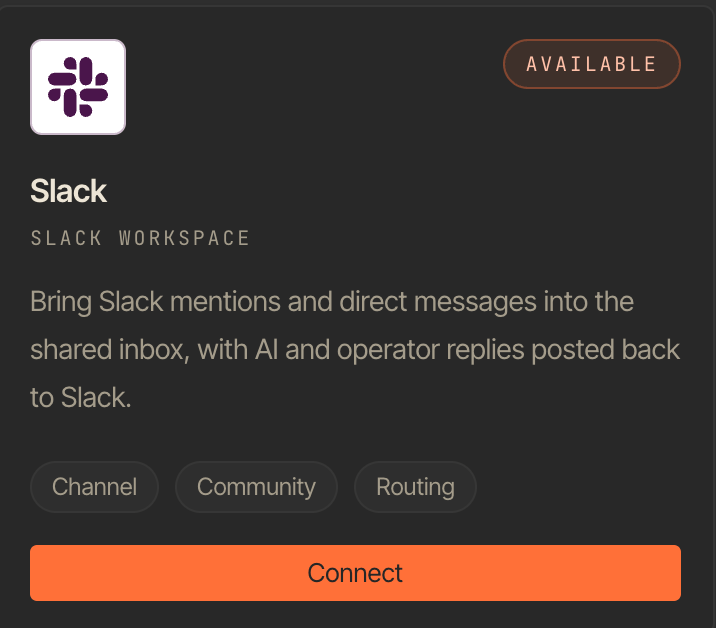
1. Open **Workspace Settings > Integrations**.
2. Select **Slack**.
3. Click **Connect** and approve the Slack install.
4. Open **Workspace Settings > Channels > Slack**.
5. Choose the Slack answering agent.
6. Turn on **Slack intake**.
7. Enable direct messages if the Slack app should receive support DMs.
8. Refresh the channel list.
9. Enable only the Slack channels Woes should listen to.
10. Pick an intake mode for each enabled channel.
11. Save the Slack settings.
If a channel does not appear, invite the Woes Slack app to that channel and
refresh the channel list.
## Intake modes
Each enabled Slack channel has its own intake mode.
| Mode | Best for | What happens |
| ------------- | ------------------------------------------------------------------------ | ------------------------------------------------------------------------------------------------- |
| App mentions | General support channels where only explicit requests should enter Woes. | Woes creates or continues a conversation when someone mentions the Slack app. |
| Every message | Dedicated support intake channels. | Woes creates or continues conversations from normal messages in that channel. |
| Ticket emoji | Busy channels where teammates should manually mark support requests. | Woes creates a conversation when someone reacts to a message with a supported ticket-style emoji. |
## Supported ticket emoji
Ticket emoji mode currently accepts:
* `:ticket:`
* `:admission_tickets:`
* `:rotating_light:`
* `:warning:`
* `:sos:`
When a supported reaction is added, Woes uses the original Slack message as the
customer request when Slack allows it.
## Slack replies
When a Slack message becomes a Woes conversation:
1. Woes creates or updates the conversation in the shared inbox.
2. The conversation is routed to the configured Slack answering agent.
3. The AI agent answers when it has enough workspace context.
4. If confidence is low, the conversation can hand off to an operator.
5. AI and operator replies post back into the original Slack thread.
Operators can still manage status, assignment, priority, notes, and related
issue workflows from Woes.
## Operator Slack notifications
Slack notifications are separate from Slack intake. Intake controls whether
Slack messages become Woes conversations. Notifications control whether Woes
sends updates to an operator's Slack account.
Each operator can connect their own Slack user:
1. Open **Account settings**.
2. Go to **Notifications**.
3. Find **Slack** under delivery channels.
4. Click **Connect**.
5. Approve Slack user linking.
6. Enable Slack for the notification events you want.
After connecting, Woes can send Slack DMs for selected notification events such
as new messages, new conversations, assignments, mentions, AI handoffs, issue
changes, and team chat messages.
## Permissions Woes requests
During Slack connection, Woes requests the permissions needed to:
* See channels the app can access.
* Receive app mentions.
* Receive direct messages sent to the Slack app.
* Read messages in selected channels where the app has been invited.
* Detect supported ticket emoji reactions.
* Post replies back into Slack threads.
* Read safe file metadata for attached files.
* Read Slack profile details when available, including email when Slack grants
access.
* Detect if the Slack app is removed from the workspace.
Woes only uses these permissions for workspace-scoped support workflows.
## Files and attachments
When a Slack message includes files, Woes can record safe metadata such as file
name, title, MIME type, file type, and size. This helps operators understand
that a screenshot, log file, or document was attached.
Woes does not expose private Slack file URLs to customers, and full private file
content ingestion is not part of the current Slack channel behavior.
## Data and privacy
Slack data is scoped to the connected Woes workspace.
| Data | How Woes uses it |
| -------------------------- | -------------------------------------------------------------------------- |
| Slack workspace identity | Associates the Slack install with the correct Woes workspace. |
| Channel names and IDs | Lets admins choose where Slack intake is allowed. |
| Slack messages | Creates or continues Woes conversations only from enabled intake surfaces. |
| Thread IDs | Posts replies back into the correct Slack thread. |
| Slack user display details | Helps operators identify the person asking for help. |
| Slack user email | Used for customer matching when Slack permits access. |
| File metadata | Shows safe attachment context without exposing private file URLs. |
| Operator Slack identity | Lets Woes DM that operator with their selected notification events. |
## Troubleshooting
| Problem | What to check |
| --------------------------------------------------- | --------------------------------------------------------------------------------------------------------------------------------- |
| Slack is connected but no conversations are created | Open **Workspace Settings > Channels > Slack** and confirm **Slack intake** is enabled. |
| Mentions do not create conversations | Confirm the channel is enabled and set to **App mentions** or **Every message**. |
| Direct messages do not create conversations | Confirm **Direct messages** is enabled in Slack channel settings. |
| A channel is missing | Invite the Woes Slack app to the channel, then refresh channels in Woes. |
| Emoji reactions do not create tickets | Confirm the channel is enabled, set to **Ticket emoji**, and uses a supported emoji. |
| Replies do not appear in Slack | Confirm the Slack app is still installed and still has access to the original channel or thread. |
| Slack notifications are not arriving | Connect your Slack user in **Account settings > Notifications**, then enable Slack for the events you want. |
| Customer emails are missing | Slack may not expose email for that user or workspace. Reconnect Slack if your admin recently approved additional profile access. |
## Related docs
* [Integrations Catalog](/integrations-catalog/overview)
* [Omnichannel support](/support-workflows/omnichannel-support)
* [Discord integration](/integrations-catalog/discord)
* [Notification preferences](/settings/notifications)
## What the Slack integration does
Use Slack when support requests already happen in shared channels, customer
channels, community spaces, or direct messages to your Slack app.
| Capability | What customers get |
| --------------------------- | ---------------------------------------------------------------------------------------------------------------------------- |
| Shared inbox intake | Approved Slack activity becomes normal Woes conversations alongside live chat, email, and Discord. |
| Controlled channel rules | Workspace admins choose exactly which Slack channels can create conversations. |
| App mention support | A mention of the Woes Slack app can open or continue a support conversation when that channel is enabled. |
| Direct message support | Direct messages to the Slack app can become support conversations when DM intake is enabled. |
| Every-message mode | Selected high-signal channels can route every normal message into Woes. |
| Emoji ticket mode | Selected channels can turn an existing Slack message into a Woes conversation when someone reacts with a ticket-style emoji. |
| AI answers in-thread | The assigned Slack agent can answer from your workspace context and post back into the Slack thread. |
| Human takeover | Operators can take over in Woes and reply back to Slack from the inbox. |
| File context | Woes can show safe Slack attachment metadata, such as file name, type, and size. |
| Customer profile enrichment | Woes can use Slack profile details, such as display name and email, when Slack permits access. |
| Analytics | Slack conversations count toward normalized conversation, channel, agent-run, and support analytics. |
| Slack notifications | Individual operators can link their Slack user so Woes can DM them selected notification events. |
Slack is a support channel for Woes. It uses the same inbox, routing, SLA,
assignment, audit, and analytics workflows as your other support channels.
## How Slack intake is controlled
Installing Slack does not automatically create inbox conversations. Slack stays
connected but inactive until a workspace admin turns on Slack intake from
**Workspace Settings > Channels > Slack**.
Slack intake has three layers of control:
1. **Slack intake**: the workspace-level on/off switch for Slack-created
support conversations.
2. **Intake surfaces**: controls for direct messages and safe file metadata.
3. **Channel rules**: per-channel rules that decide whether Woes listens for app
mentions, every message, or ticket emoji reactions.
This keeps Slack safe for larger workspaces. You can install the app, review the
available channels, and enable only the places that should become support
intake.
## Setup
1. Open **Workspace Settings > Integrations**.
2. Select **Slack**.
3. Click **Connect** and approve the Slack install.
4. Open **Workspace Settings > Channels > Slack**.
5. Choose the Slack answering agent.
6. Turn on **Slack intake**.
7. Enable direct messages if the Slack app should receive support DMs.
8. Refresh the channel list.
9. Enable only the Slack channels Woes should listen to.
10. Pick an intake mode for each enabled channel.
11. Save the Slack settings.
If a channel does not appear, invite the Woes Slack app to that channel and
refresh the channel list.
## Intake modes
Each enabled Slack channel has its own intake mode.
| Mode | Best for | What happens |
| ------------- | ------------------------------------------------------------------------ | ------------------------------------------------------------------------------------------------- |
| App mentions | General support channels where only explicit requests should enter Woes. | Woes creates or continues a conversation when someone mentions the Slack app. |
| Every message | Dedicated support intake channels. | Woes creates or continues conversations from normal messages in that channel. |
| Ticket emoji | Busy channels where teammates should manually mark support requests. | Woes creates a conversation when someone reacts to a message with a supported ticket-style emoji. |
## Supported ticket emoji
Ticket emoji mode currently accepts:
* `:ticket:`
* `:admission_tickets:`
* `:rotating_light:`
* `:warning:`
* `:sos:`
When a supported reaction is added, Woes uses the original Slack message as the
customer request when Slack allows it.
## Slack replies
When a Slack message becomes a Woes conversation:
1. Woes creates or updates the conversation in the shared inbox.
2. The conversation is routed to the configured Slack answering agent.
3. The AI agent answers when it has enough workspace context.
4. If confidence is low, the conversation can hand off to an operator.
5. AI and operator replies post back into the original Slack thread.
Operators can still manage status, assignment, priority, notes, and related
issue workflows from Woes.
## Operator Slack notifications
Slack notifications are separate from Slack intake. Intake controls whether
Slack messages become Woes conversations. Notifications control whether Woes
sends updates to an operator's Slack account.
Each operator can connect their own Slack user:
1. Open **Account settings**.
2. Go to **Notifications**.
3. Find **Slack** under delivery channels.
4. Click **Connect**.
5. Approve Slack user linking.
6. Enable Slack for the notification events you want.
After connecting, Woes can send Slack DMs for selected notification events such
as new messages, new conversations, assignments, mentions, AI handoffs, issue
changes, and team chat messages.
## Permissions Woes requests
During Slack connection, Woes requests the permissions needed to:
* See channels the app can access.
* Receive app mentions.
* Receive direct messages sent to the Slack app.
* Read messages in selected channels where the app has been invited.
* Detect supported ticket emoji reactions.
* Post replies back into Slack threads.
* Read safe file metadata for attached files.
* Read Slack profile details when available, including email when Slack grants
access.
* Detect if the Slack app is removed from the workspace.
Woes only uses these permissions for workspace-scoped support workflows.
## Files and attachments
When a Slack message includes files, Woes can record safe metadata such as file
name, title, MIME type, file type, and size. This helps operators understand
that a screenshot, log file, or document was attached.
Woes does not expose private Slack file URLs to customers, and full private file
content ingestion is not part of the current Slack channel behavior.
## Data and privacy
Slack data is scoped to the connected Woes workspace.
| Data | How Woes uses it |
| -------------------------- | -------------------------------------------------------------------------- |
| Slack workspace identity | Associates the Slack install with the correct Woes workspace. |
| Channel names and IDs | Lets admins choose where Slack intake is allowed. |
| Slack messages | Creates or continues Woes conversations only from enabled intake surfaces. |
| Thread IDs | Posts replies back into the correct Slack thread. |
| Slack user display details | Helps operators identify the person asking for help. |
| Slack user email | Used for customer matching when Slack permits access. |
| File metadata | Shows safe attachment context without exposing private file URLs. |
| Operator Slack identity | Lets Woes DM that operator with their selected notification events. |
## Troubleshooting
| Problem | What to check |
| --------------------------------------------------- | --------------------------------------------------------------------------------------------------------------------------------- |
| Slack is connected but no conversations are created | Open **Workspace Settings > Channels > Slack** and confirm **Slack intake** is enabled. |
| Mentions do not create conversations | Confirm the channel is enabled and set to **App mentions** or **Every message**. |
| Direct messages do not create conversations | Confirm **Direct messages** is enabled in Slack channel settings. |
| A channel is missing | Invite the Woes Slack app to the channel, then refresh channels in Woes. |
| Emoji reactions do not create tickets | Confirm the channel is enabled, set to **Ticket emoji**, and uses a supported emoji. |
| Replies do not appear in Slack | Confirm the Slack app is still installed and still has access to the original channel or thread. |
| Slack notifications are not arriving | Connect your Slack user in **Account settings > Notifications**, then enable Slack for the events you want. |
| Customer emails are missing | Slack may not expose email for that user or workspace. Reconnect Slack if your admin recently approved additional profile access. |
## Related docs
* [Integrations Catalog](/integrations-catalog/overview)
* [Omnichannel support](/support-workflows/omnichannel-support)
* [Discord integration](/integrations-catalog/discord)
* [Notification preferences](/settings/notifications)