> ## Documentation Index
> Fetch the complete documentation index at: https://docs.woes.dev/llms.txt
> Use this file to discover all available pages before exploring further.
# Linear Integration
> Connect Linear to Woes so support issues can create product work, stay linked, and keep status in sync.
# Linear Integration
 Linear connects Woes support issues to your product and engineering workflow.
Use it to turn customer pain, bug reports, docs gaps, and feature requests into
Linear issues while keeping the original support context attached.
Linear connects Woes support issues to your product and engineering workflow.
Use it to turn customer pain, bug reports, docs gaps, and feature requests into
Linear issues while keeping the original support context attached.
 ## At A Glance
| Use Linear for | Where it appears |
| ------------------------------------------------------------------------------------------- | ----------------------------------------------------------------- |
| Turning support issues into product or engineering work with a visible linked Linear issue. | Integrations, Issues, Automations, and customer-safe issue views. |
## What Linear does in Woes
| Capability | What you can do |
| --------------------------- | -------------------------------------------------------------------------------------------------------------------------------------------- |
| Connect Linear | Admins connect a Linear workspace from **Workspace Settings -> Integrations -> Linear**. |
| Choose a team | When creating a Linear issue, choose the Linear team that should own the work. |
| Create linked issues | Create a Linear issue from a Woes support issue with the customer problem, account context, channel, priority, and support summary attached. |
| Keep the link visible | Open the linked Linear issue, see its key and status, or unlink it from the Woes issue drawer. |
| Sync status | When a linked support issue or Linear issue changes lifecycle status, Woes keeps the other side aligned where possible. |
| Automate handoff | Use the **Create Linear issue** automation action for issue workflows, such as high-priority bugs or repeated feature requests. |
| Share safe customer context | Customer-facing issue summaries can show the linked Linear issue key, status, and URL without exposing private workspace details. |
Linear is a workflow integration. It is not a support channel, and Woes does
not use Linear issues as documentation for the AI agent.
## Where it appears in Woes
* **Workspace Settings -> Integrations** — connect, reconnect, disconnect, and
confirm the Linear connection.
* **Issues** — create a Linear issue from a Woes support issue, choose a team,
open the linked Linear issue, or unlink it.
* **Automations** — add the **Create Linear issue** action to issue workflows.
* **Customer issue views** — show safe linked Linear issue details when a Woes
issue already has a Linear link.
## Connect Linear
1. In Woes, open **Workspace Settings -> Integrations**.
2. Select **Linear**.
3. Click **Connect**.
4. Approve the requested Linear permissions.
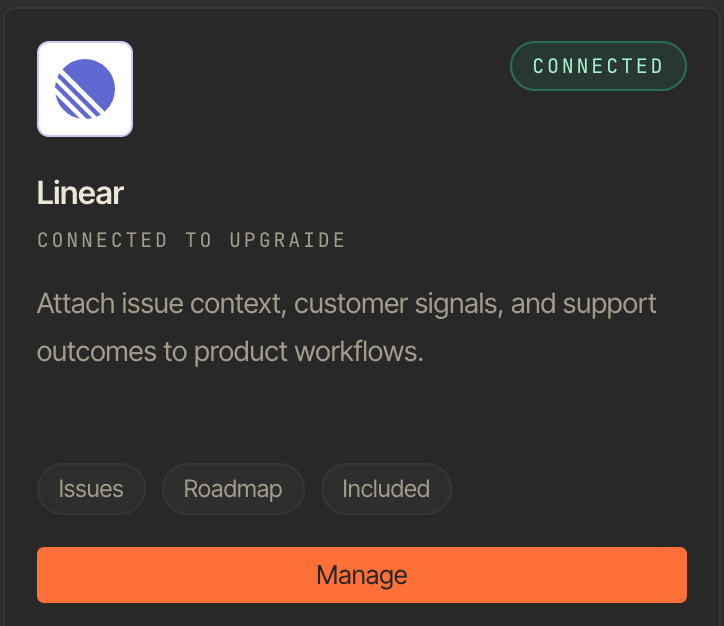
5. Return to Woes and confirm the Linear card shows **Connected**.
After connecting, open any Woes support issue and choose **Create Linear issue**
from the issue actions. Pick the Linear team, review the issue title and
description, and create the linked Linear issue.
If status sync or issue creation does not work after reconnecting, ask a Woes
workspace admin to disconnect and reconnect Linear so the latest permissions
are granted.
## Status sync
Woes maps support issue lifecycle states to the closest matching Linear
workflow state available on the selected team.
| Woes issue status | Linear workflow behavior |
| ----------------- | ------------------------------------------------------------------------------ |
| New | Moves the linked Linear issue to an intake or unstarted state when available. |
| On you | Moves the linked Linear issue to an active or started state when available. |
| On customer | Keeps the linked Linear issue in an active or started state when available. |
| On hold | Moves the linked Linear issue to a backlog or paused state when available. |
| Closed | Moves the linked Linear issue to a completed or canceled state when available. |
If a Linear team uses custom workflow states, Woes chooses the closest available
state type. If there is no reasonable match, the link remains visible and the
issue can still be managed manually in Linear.
## Automations
The **Create Linear issue** automation action is available for issue workflows.
It uses the same Linear connection as manual issue creation and avoids creating
duplicate Linear issues for the same Woes issue.
Good automation patterns:
* Create a Linear issue for new high-priority bug reports.
* Create a Linear issue when a support issue receives a `docs-gap` tag.
* Create a Linear issue for repeated customer requests after triage.
## Permissions and privacy
Woes asks Linear for the permissions needed to read basic workspace information,
create issues, and keep linked issue status up to date. Woes only shows
customer-facing Linear details that are useful for tracking work, such as the
linked issue key, status, and URL.
Private Linear connection details are not shown in customer issue views.
## Current boundaries
* Woes creates Linear issues from Woes support issues; it does not create Woes
support issues from unrelated Linear issues.
* Woes syncs lifecycle status. Linear comments are not posted as
customer-visible replies; when available, linked Linear comment activity may
appear as operator-only internal notes in Woes.
* Woes does not mirror Linear assignees, labels, projects, estimates, or cycles
yet.
* Woes does not import Linear issues into the Context Library.
* Automation rules create or keep one Linear link per Woes issue. They do not
yet choose a specific Linear project, label, cycle, or assignee per rule.
## Troubleshooting
| Problem | What to check |
| ----------------------------------------- | --------------------------------------------------------------------------------------------------------------------------------------------------------- |
| Linear will not connect | Make sure you are a Woes admin and that your Linear account has permission to install apps for the Linear workspace. |
| You cannot create a Linear issue | Reconnect Linear, then confirm you have access to at least one Linear team. |
| Status does not sync | Reconnect Linear so Woes has the latest permissions, then confirm the linked Linear team has an active workflow state that matches the Woes issue status. |
| Automation does not create a Linear issue | Confirm the automation is published, enabled, and uses an issue workflow trigger. |
| The wrong team owns the work | Open the Woes issue, unlink the Linear issue if needed, and create a new Linear issue under the correct team. |
## Related docs
* [Integrations Catalog](/integrations-catalog/overview)
* [Issues](/platform/issues)
* [Automations](/platform/automations)
* [Public Issues API](/api/issues)
## At A Glance
| Use Linear for | Where it appears |
| ------------------------------------------------------------------------------------------- | ----------------------------------------------------------------- |
| Turning support issues into product or engineering work with a visible linked Linear issue. | Integrations, Issues, Automations, and customer-safe issue views. |
## What Linear does in Woes
| Capability | What you can do |
| --------------------------- | -------------------------------------------------------------------------------------------------------------------------------------------- |
| Connect Linear | Admins connect a Linear workspace from **Workspace Settings -> Integrations -> Linear**. |
| Choose a team | When creating a Linear issue, choose the Linear team that should own the work. |
| Create linked issues | Create a Linear issue from a Woes support issue with the customer problem, account context, channel, priority, and support summary attached. |
| Keep the link visible | Open the linked Linear issue, see its key and status, or unlink it from the Woes issue drawer. |
| Sync status | When a linked support issue or Linear issue changes lifecycle status, Woes keeps the other side aligned where possible. |
| Automate handoff | Use the **Create Linear issue** automation action for issue workflows, such as high-priority bugs or repeated feature requests. |
| Share safe customer context | Customer-facing issue summaries can show the linked Linear issue key, status, and URL without exposing private workspace details. |
Linear is a workflow integration. It is not a support channel, and Woes does
not use Linear issues as documentation for the AI agent.
## Where it appears in Woes
* **Workspace Settings -> Integrations** — connect, reconnect, disconnect, and
confirm the Linear connection.
* **Issues** — create a Linear issue from a Woes support issue, choose a team,
open the linked Linear issue, or unlink it.
* **Automations** — add the **Create Linear issue** action to issue workflows.
* **Customer issue views** — show safe linked Linear issue details when a Woes
issue already has a Linear link.
## Connect Linear
1. In Woes, open **Workspace Settings -> Integrations**.
2. Select **Linear**.
3. Click **Connect**.
4. Approve the requested Linear permissions.
5. Return to Woes and confirm the Linear card shows **Connected**.
After connecting, open any Woes support issue and choose **Create Linear issue**
from the issue actions. Pick the Linear team, review the issue title and
description, and create the linked Linear issue.
If status sync or issue creation does not work after reconnecting, ask a Woes
workspace admin to disconnect and reconnect Linear so the latest permissions
are granted.
## Status sync
Woes maps support issue lifecycle states to the closest matching Linear
workflow state available on the selected team.
| Woes issue status | Linear workflow behavior |
| ----------------- | ------------------------------------------------------------------------------ |
| New | Moves the linked Linear issue to an intake or unstarted state when available. |
| On you | Moves the linked Linear issue to an active or started state when available. |
| On customer | Keeps the linked Linear issue in an active or started state when available. |
| On hold | Moves the linked Linear issue to a backlog or paused state when available. |
| Closed | Moves the linked Linear issue to a completed or canceled state when available. |
If a Linear team uses custom workflow states, Woes chooses the closest available
state type. If there is no reasonable match, the link remains visible and the
issue can still be managed manually in Linear.
## Automations
The **Create Linear issue** automation action is available for issue workflows.
It uses the same Linear connection as manual issue creation and avoids creating
duplicate Linear issues for the same Woes issue.
Good automation patterns:
* Create a Linear issue for new high-priority bug reports.
* Create a Linear issue when a support issue receives a `docs-gap` tag.
* Create a Linear issue for repeated customer requests after triage.
## Permissions and privacy
Woes asks Linear for the permissions needed to read basic workspace information,
create issues, and keep linked issue status up to date. Woes only shows
customer-facing Linear details that are useful for tracking work, such as the
linked issue key, status, and URL.
Private Linear connection details are not shown in customer issue views.
## Current boundaries
* Woes creates Linear issues from Woes support issues; it does not create Woes
support issues from unrelated Linear issues.
* Woes syncs lifecycle status. Linear comments are not posted as
customer-visible replies; when available, linked Linear comment activity may
appear as operator-only internal notes in Woes.
* Woes does not mirror Linear assignees, labels, projects, estimates, or cycles
yet.
* Woes does not import Linear issues into the Context Library.
* Automation rules create or keep one Linear link per Woes issue. They do not
yet choose a specific Linear project, label, cycle, or assignee per rule.
## Troubleshooting
| Problem | What to check |
| ----------------------------------------- | --------------------------------------------------------------------------------------------------------------------------------------------------------- |
| Linear will not connect | Make sure you are a Woes admin and that your Linear account has permission to install apps for the Linear workspace. |
| You cannot create a Linear issue | Reconnect Linear, then confirm you have access to at least one Linear team. |
| Status does not sync | Reconnect Linear so Woes has the latest permissions, then confirm the linked Linear team has an active workflow state that matches the Woes issue status. |
| Automation does not create a Linear issue | Confirm the automation is published, enabled, and uses an issue workflow trigger. |
| The wrong team owns the work | Open the Woes issue, unlink the Linear issue if needed, and create a new Linear issue under the correct team. |
## Related docs
* [Integrations Catalog](/integrations-catalog/overview)
* [Issues](/platform/issues)
* [Automations](/platform/automations)
* [Public Issues API](/api/issues)